

Table of Contents
🧭 Overview
If you’re planning to automate your AWS infrastructure — especially something fun like Deploying a modded Minecraft server — you’ll need the right tools on your machine. This guide walks you through installing Terraform and setting up Visual Studio Code (VS Code) so you’re ready to write and run infrastructure-as-code with confidence.
📚 What You’ll Learn
✅ How to download and install Terraform
✅ How to configure your system’s PATH (Windows)
✅ How to verify Terraform is installed correctly
✅How to install Visual Studio Code
✅ How to add the official Terraform extension to VS Code
Let’s get started! 🚀
⚙️ Prequisites
Before we begin, make sure you have the following:
A Windows, macOS, or Linux machine
Internet connection
Basic comfort with a command line (Command Prompt, PowerShell, or Terminal)
📩 Section 1: Download Terraform
Go to the official HashiCorp download page:

Download the latest version for your OS.
Windows: Extract the
.zipfile into a folder likeC:\terraformand then run the.exemacOS/Linux: Extract and move the binary to a directory like
/usr/local/bin

🖥️ Section 2: Add Terraform to Your PATH (Windows Only)
To use Terraform from anywhere in your terminal:
Search for “Edit environment variables for your account” in the Windows Search Bar
Click New under User Variables
Name your new variable Terraform and then click Browse Directory to map it to the
C:\terraformfolder you createdSelect Ok
Save and close all windows
☑️ Section 3: Confirm Terraform is Installed
Step 1: Open Your Terminal
Run the following command:
terraform -version
Step 2: Confirm your Terraform Version
You should see the installed version printed to the screen:

					Terraform v1.12.2
on windows_386
📩 Section 4: Download Visual Studio Code
Go to the official Microsoft Visual Studio download page:
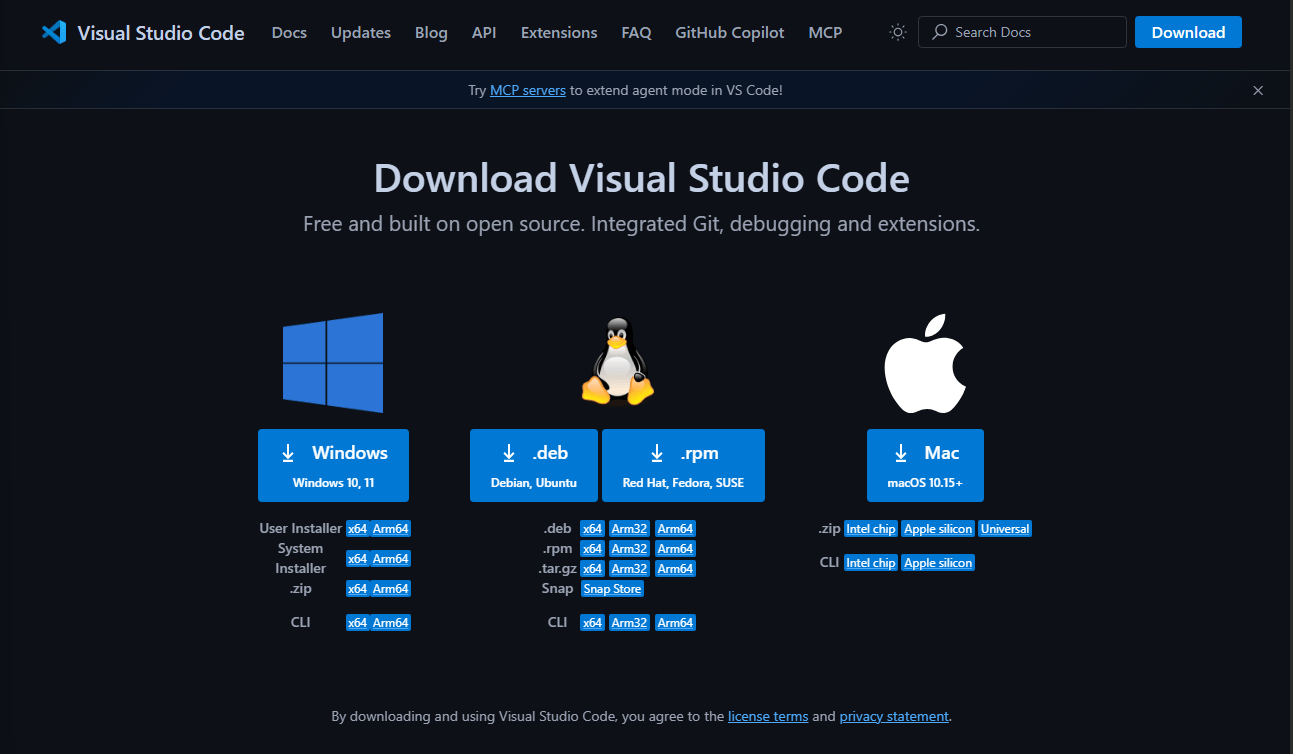
Download the latest version for your OS.
Simply install it and open the application.
🛰️ Section 5: Add the Terraform Extension
Inside VS Code:
Click the Extensions icon (or press
Ctrl+Shift+X)Search for
TerraformInstall the one published by HashiCorp
✏️Note: This extension adds syntax highlighting, auto-complete, and error checking to your .tf files.

✅ Wrapping Up
You’re now ready to write and run Terraform code locally. If you’re following along with our infrastructure tutorials, you can now move on to:
That article walks through setting up S3, IAM, EC2, and using a bootstrap script — all with the tools you’ve just installed.
